TaskSmart User Manual
Getting Started
Welcome to TaskSmart!
TaskSmart is a powerful, privacy-first productivity app that works 100% offline. This guide will help you make the most of all its features.
1 First Launch
When you first open TaskSmart, a default workspace called "My Space" is automatically created for you. You're ready to start creating tasks immediately - no setup required!
2 Create Your First Task
Tap the "+" button at the bottom right to create a new task. Add a title, description, due date, priority, and any other details you need.
3 Explore Views
Switch between, My Day, Insights, Goals, and Calendar views using the bottom navigation to find your preferred workflow.
Task Management
Creating Tasks
Tasks are the foundation of TaskSmart. Each task can include:
- Title: Brief description of what needs to be done
- Description: Detailed notes and information
- Priority: None, Low, Medium, High, or Urgent
- Due Date: When the task needs to be completed
- Start Date: When you plan to begin
- Status: Current state (To Do, In Progress, Done, etc.)
- List: Which project or category it belongs to
- Tags: Labels for categorization
- Subtasks: Smaller steps within the task
- Attachments: Files, images, or PDFs
Organizing Tasks
- Spaces: Top-level containers (e.g., "Work", "Personal")
- Lists: Projects or categories within a space
- Statuses: Workflow stages (customizable)
- Tags: Cross-cutting labels with colors
Task Actions
- Tap to view details and edit
- Long press for quick actions menu
- Swipe to mark complete or delete
Multiple Views
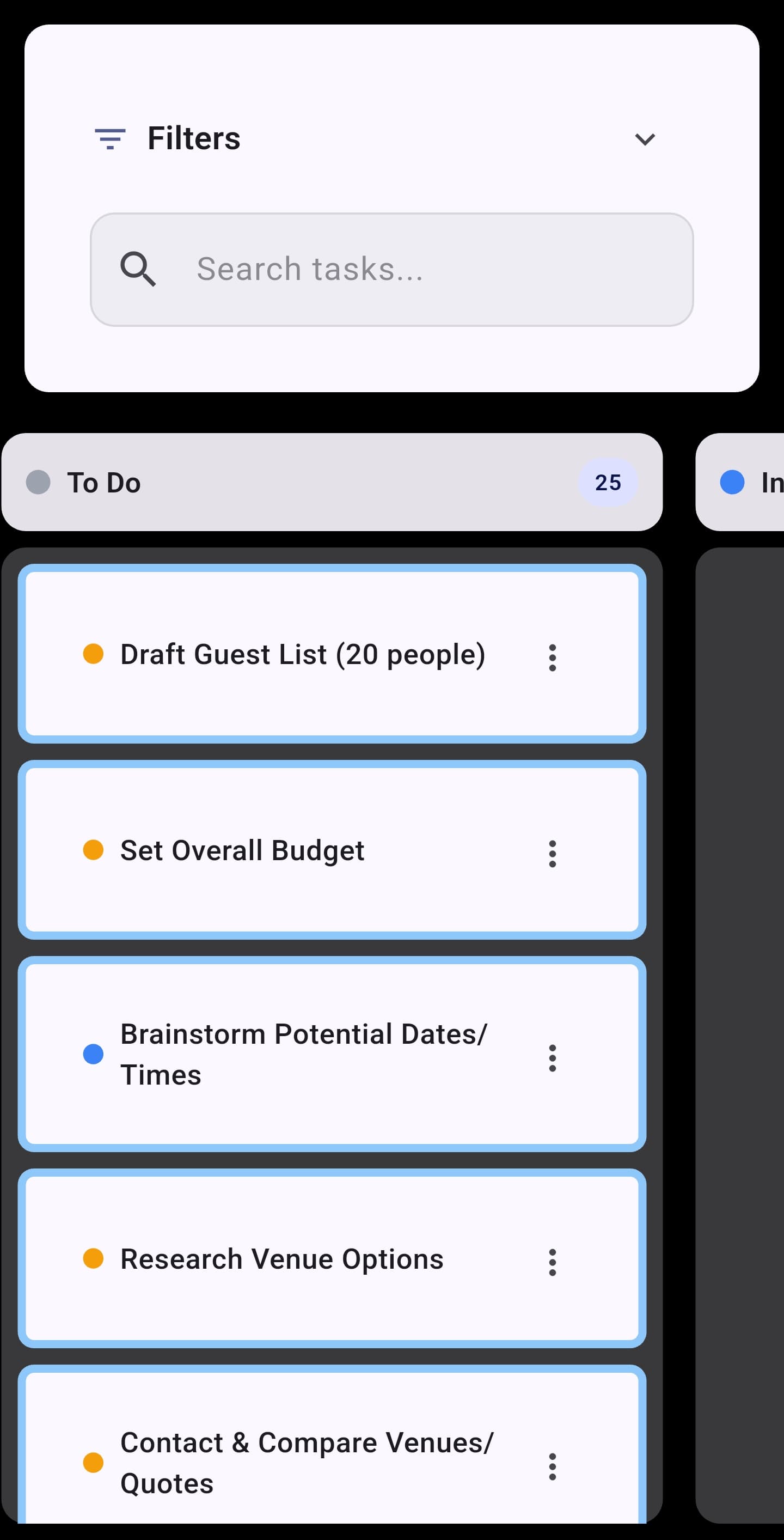
📋 Board View (Kanban)
Visual columns representing different statuses. Drag tasks between columns to update their status. Ideal for workflow visualization.
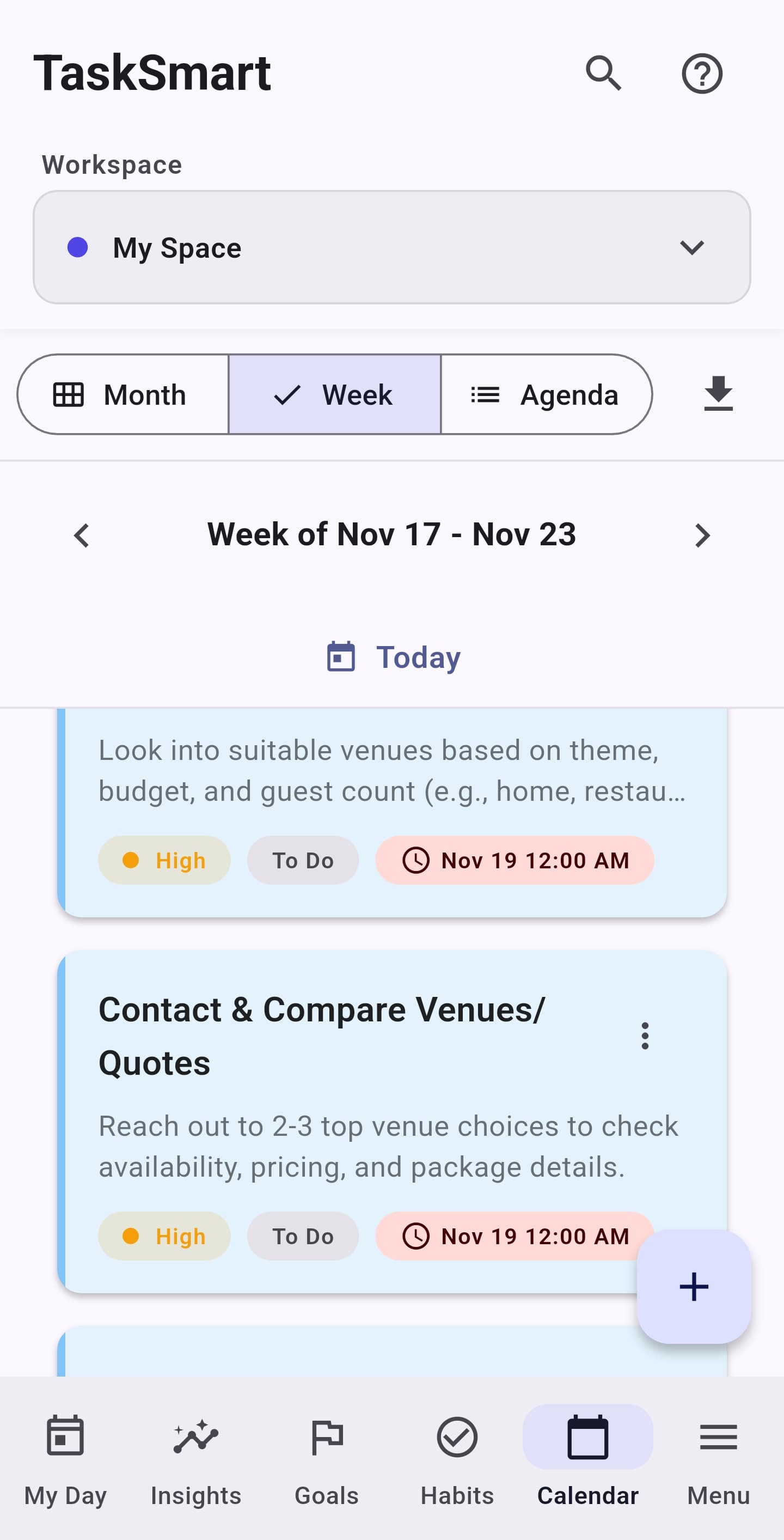
📅 Calendar View
See all your tasks and events in calendar format. Visualize deadlines and plan your schedule effectively.
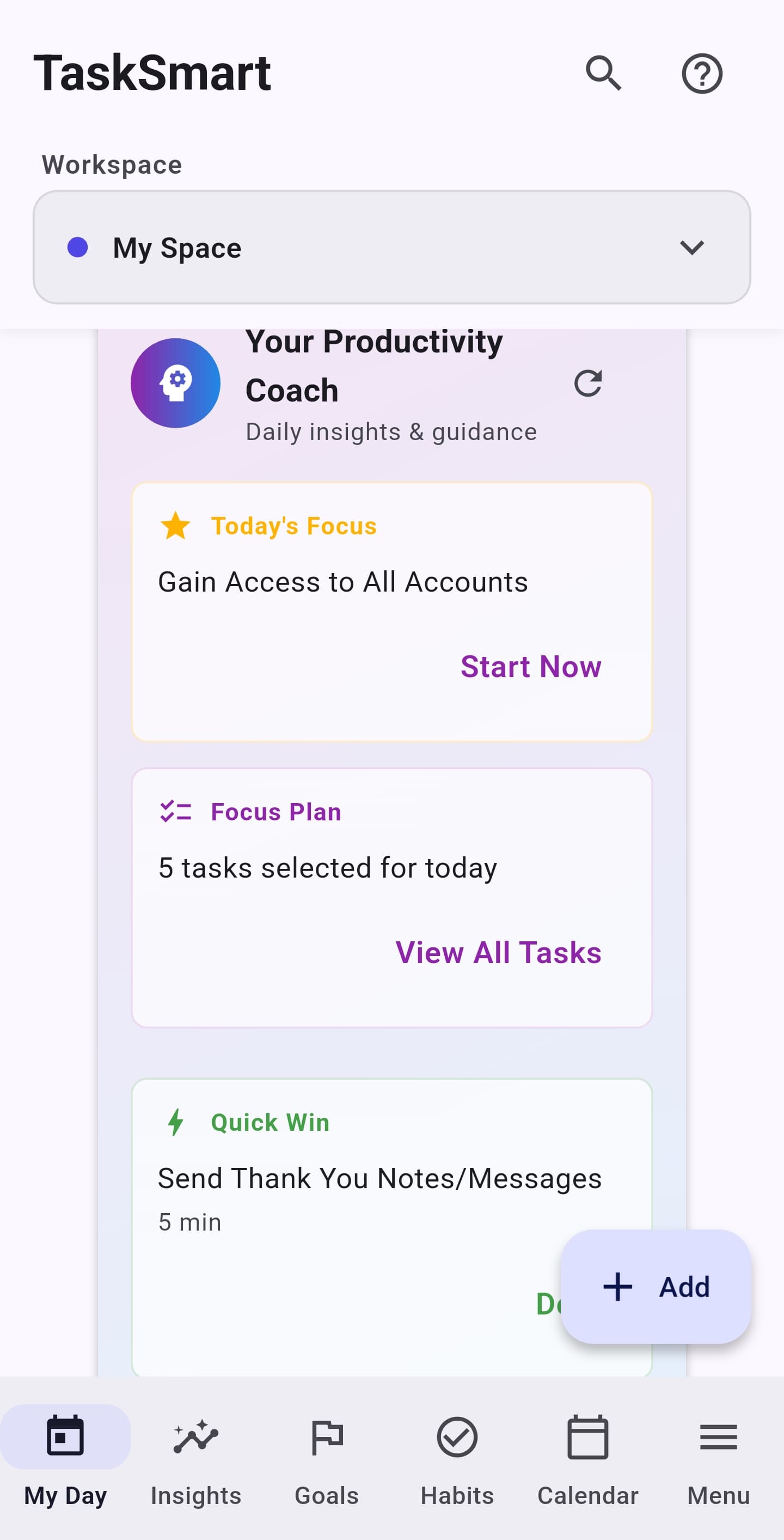
☀️ My Day View
Focus on today's priorities. Add tasks to My Day for focused daily planning without distraction.
AI Features
Setting Up AI
1 Get an API Key
Obtain an API key from OpenAI, Anthropic, or Google AI.
2 Configure in App
Go to Settings → AI Settings and enter your API key.
3 Start Using AI
AI-powered features will now be available throughout the app.
AI Capabilities
- Smart Task Breakdown: AI analyzes your task and suggests actionable subtasks
- Time Estimates: Get intelligent predictions for task duration
- Daily Briefing: Morning summary with priorities and insights
- Task Suggestions: AI recommends dependencies and optimal scheduling
- Goal Planning: Break down big goals into achievable steps

Goals & Milestones
Creating Goals
Goals help you achieve long-term objectives:
- Go to Goals tab in the bottom navigation
- Tap "+" to create a new goal
- Set a title, description, and target date
- Add milestones to break it down
- Link tasks to your goal
Milestones
Break your goal into major checkpoints:
- Each milestone has its own target date
- Mark milestones complete as you achieve them
- View overall goal progress

Habit Tracking
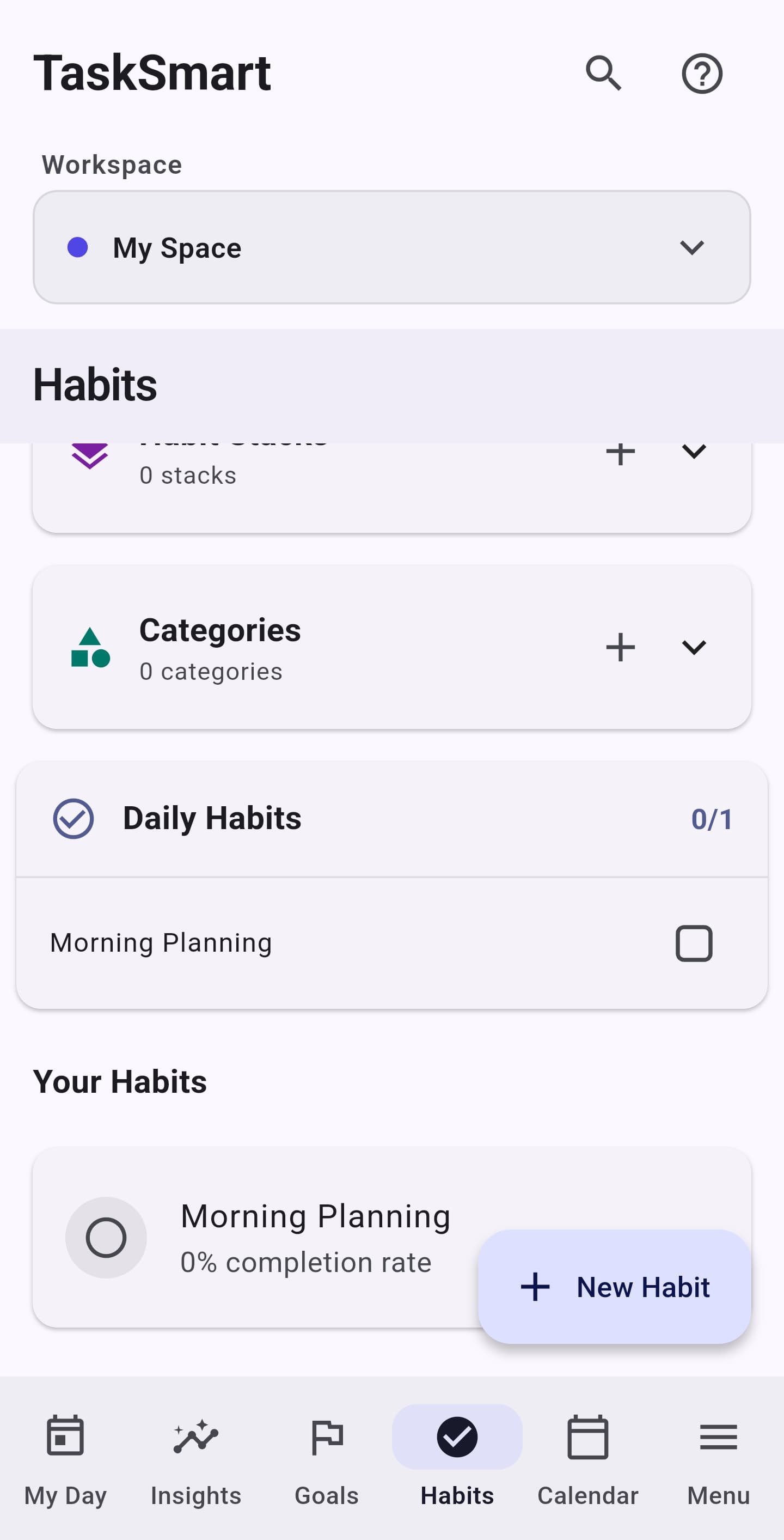
Building Habits
Track daily habits and build consistency:
- Go to Habits tab
- Create a new habit with title and frequency
- Set reminders (optional)
- Check off each day you complete it
- Watch your streak grow!
Habit Frequencies
- Daily: Every day
- Weekly: Specific days of the week
- Custom: Your own schedule
Achievements
Earn badges for:
- 7-day streak
- 30-day streak
- 100-day streak
- Perfect weeks
Productivity Analytics
Understanding Your Metrics
- Productivity Score: Overall daily performance (0-100)
- Tasks Completed: Number of tasks finished
- Focus Time: Time spent on productive work
- Completion Rate: Percentage of tasks completed on time
Reports
- Daily: Today's productivity snapshot
- Weekly: 7-day trends and patterns
- Monthly: Long-term productivity analysis

Calendar Integration

Using the Calendar
TaskSmart includes a built-in calendar that shows:
- Tasks with due dates
- Events and appointments
- Habit reminders
- Goal milestones
Syncing with Device Calendar
- Go to Settings → Calendar Settings
- Grant calendar permission
- Select which calendars to sync
- Choose sync frequency
Settings & Customization
Appearance
- Theme: Choose Light or Dark mode
- Color Theme: Select from multiple color palettes
- Custom Colors: Set colors for lists, tags, and statuses
Notifications
- Enable/disable task reminders
- Set notification sound and vibration
- Configure quiet hours
AI Settings
- Configure AI provider and API key
- Choose AI model
- Enable/disable specific AI features
Data Management
- Export: Save data as JSON or CSV
- Import: Restore from previous export
- Clear Data: Reset app to initial state
Tips & Tricks
Productivity Tips
Keyboard Shortcuts
While TaskSmart is primarily touch-based, the desktop version includes:
- Ctrl/Cmd + N: New task
- Ctrl/Cmd + F: Search tasks
- Ctrl/Cmd + B: Toggle Board view
Best Practices
- Break large tasks into smaller subtasks
- Set realistic due dates
- Use priorities wisely (not everything is urgent!)
- Review and update tasks regularly
- Archive completed tasks to keep lists clean
- Export your data regularly as backup
Need More Help?
For additional support: